
1. Start with shapes that can become thread
Choose artwork with clean edges, broad color areas and enough space between details. A small logo or simple illustration is a useful first project. Tiny lettering, gradients and busy backgrounds are harder to reproduce with physical thread. Keep an original copy so you can simplify the image without losing your source. Only use artwork you own or have permission to process.
2. Upload the image, not a renamed file
Auto Scope accepts PNG, JPG and WebP under 3 MB, with a decoded limit of 20 megapixels. Changing a filename from .jpg to .pes or .dst does not create stitches. Open the studio and upload your image; the digitizer must first calculate a sewing path. Transparent PNGs are helpful when the background is already removed.
3. Set the size for your actual hoop
Choose the width in millimeters and check the resulting height. Both dimensions must fit the hoop and design area supported by your machine. A detail that looks clear when enlarged on screen can become too small at sewing size. If lettering or thin shapes are crowded, simplify the artwork or increase the physical design size before generating again.
4. Choose a practical palette
Begin with fewer colors for a logo and increase the palette only when it improves the important shapes. The studio groups image colors into thread layers; these are planning colors, not a guarantee of a matching spool. If background removal removes part of the subject, turn it off and inspect the layers instead. Keep your real thread choices alongside the exported worksheet.
5. Read the stitch plan before paying
Generating a preview is free and does not require an account. Play the sewing sequence, zoom into edges and inspect the Jumps view. Look for unexpected background fills, isolated stitches and gaps. The layer tools let you change colors, remove unwanted layers, move selected layers, scale the design and rotate it. Inspect again after editing, and check that the result still fits your hoop.
6. Choose the format your machine accepts
PES, DST, JEF, EXP, VP3, XXX and PEC are available. Consult the manual for your exact model rather than assuming a brand accepts every file. PES is exported as version 6. DST and EXP do not retain custom RGB thread colors, so use the worksheet and color sequence. Auto Scope does not export proprietary EMB or PXF authoring files.
7. Export when the preview is useful
Machine-file export requires an account and a paid plan. Starter provides 30 monthly design exports for $3.99, Maker provides 80 for $4.99 and Studio has unlimited monthly exports for $9.99. The complete ZIP includes the machine formats, PDF worksheet, color sequence, SVG stitch preview and editable Threadwork project. A new revised design uses another export credit; repeat downloads of a saved design are included while the plan is active.
8. Make a small test sew
Transfer the file using your machine’s recommended software or USB workflow. Use suitable stabilizer, fabric, needle and thread, then sew a test before making the final item. Watch for puckering, gaps, thread breaks, density and trimming behavior. A digital preview describes the planned stitches; it cannot simulate every material or machine setting. Adjust the source or digitizing settings if the test exposes a problem.
A useful first project
Try a simple two- to four-color illustration at a size that comfortably fits your hoop. Work through one complete preview and test sew before attempting a detailed photo or a large customer order. The first-design, artwork and format guides explain the settings in more detail.
A worked example: the blue butterfly stitch plan
This is the same sample project shown in the AutoScope homepage preview. Compare the source artwork with the digital stitch rendering, then inspect the sewing sequence on the homepage. The rendering is a simulation, not a photograph of a sewn result.

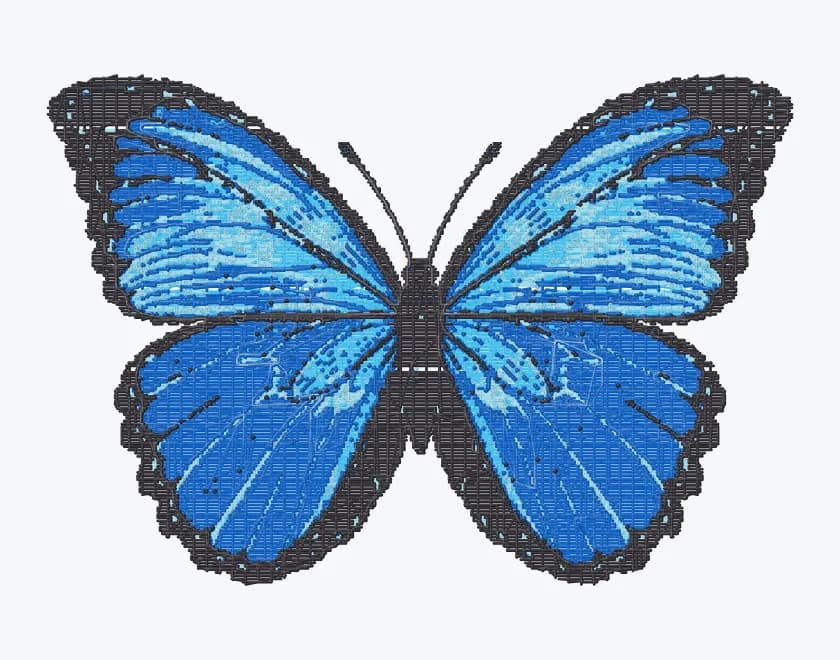
- Design size
- 100 × 66.7 mm
- Thread layers
- 4
- Fill spacing / stitch length setting
- 0.4 mm / 3 mm
- Stored sewing / jump points
- 41,465 / 767
The saved project uses photo mode, keeps the background and uses a merge threshold of 1. Counts above come from its stored path points; an exported format or machine may report different totals after encoding. They do not predict sewing time or prove stitch quality.
What to inspect in this example
- Compare the wing edges with the source: color grouping simplifies shades and fine details.
- Follow the dark layer across separated areas. Jump moves describe travel between sewing paths; check how your machine handles trimming.
- Check the full 100 × 66.7 mm design against your machine’s usable embroidery area. The preview’s suggested hoop does not establish machine compatibility.
- Test-sew with your intended fabric and stabilizer before using the design on a finished item.
Inspect the live butterfly preview or convert your own JPG to PES. You can also inspect the public sample project to see the recorded settings and paths. Your own artwork may need different settings.
Convert your JPG artwork to PES
For a compatible PES machine, use the JPG to PES converter to generate a free stitch preview. Review the design size and thread layers before choosing a paid export plan. The converter page also includes checks for a PES file your machine cannot read.
Put this guide into practice
Encoding reference: pyembroidery project. For machine-specific limits, check your manufacturer’s manual.